Worldaware

The world, one layer at a time
Quick guide

How to use Worldaware

Six short animated demos of the platform's main gestures. Each tile shows the interaction live: watch it play and click “Open in the portal” to try it right away on the real map.

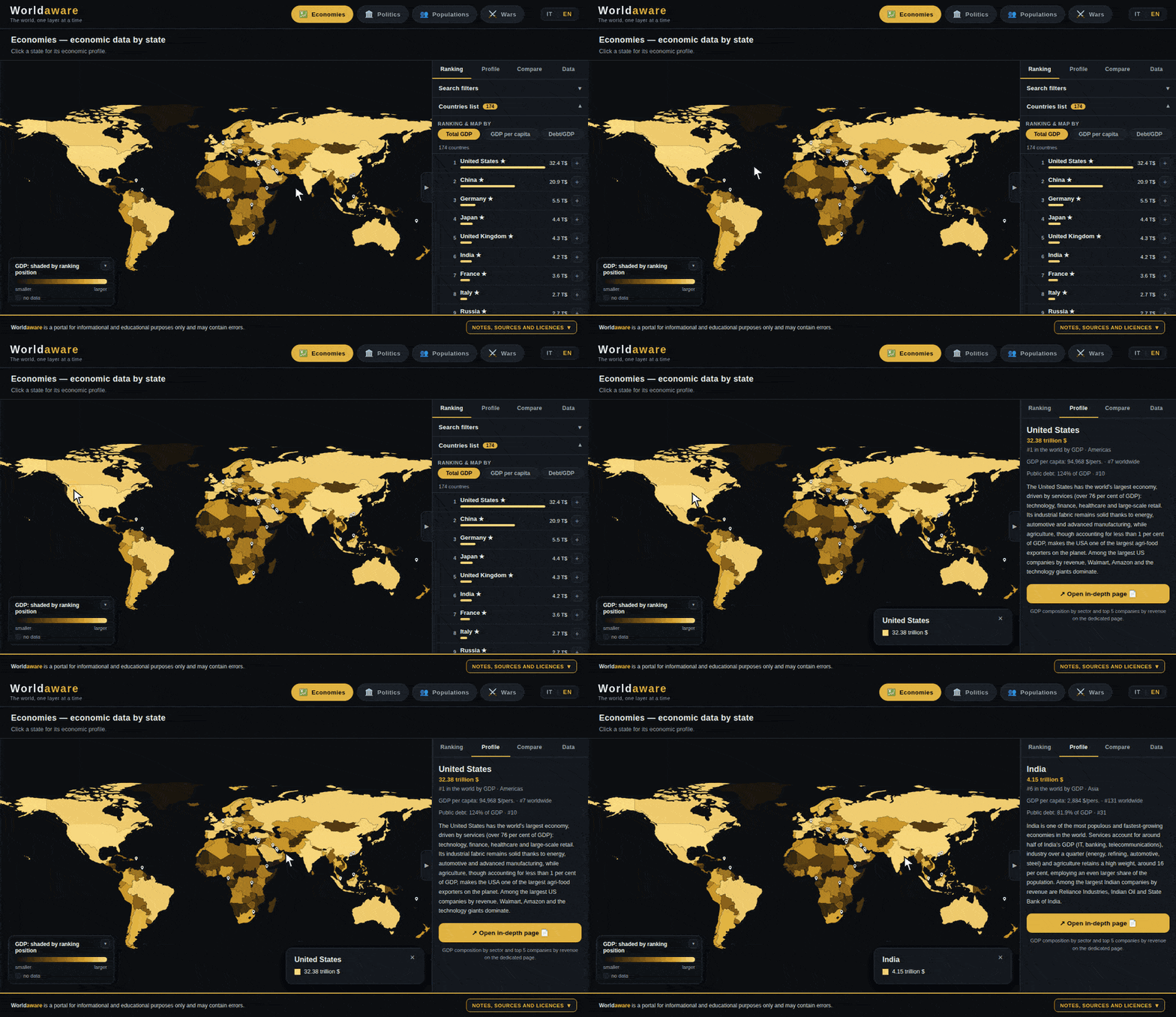
1 Clicking a country on the map opens the Country panel with its data

Click a country to open its card

Every country on the map is clickable. A click opens the Country card on the right with the data for the active layer (economy, politics, population). Click another country and the card updates instantly.
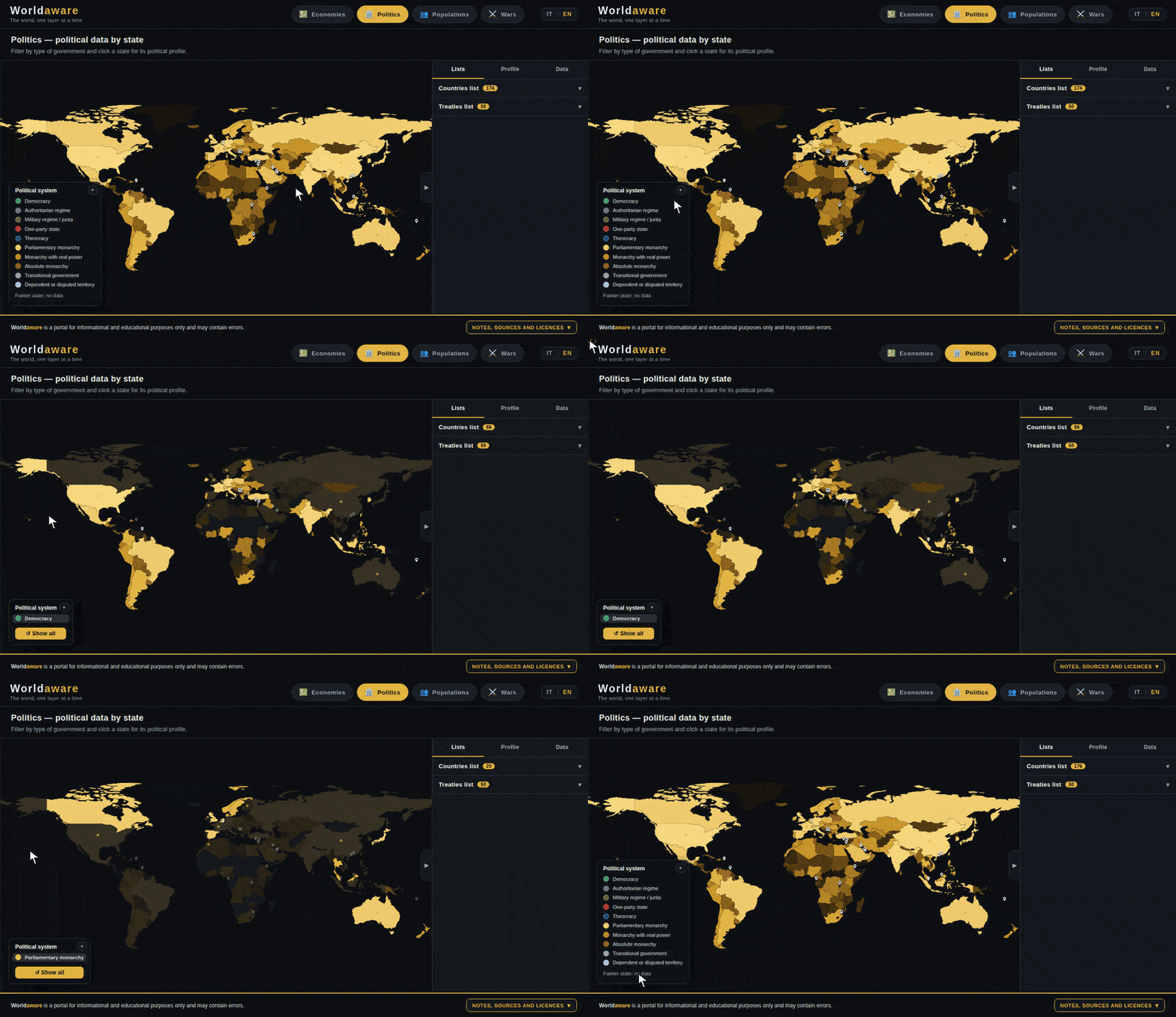
2 Clicking a legend entry isolates that category on the map

Isolate a category from the legend

Click a legend entry (e.g. a political system) and the map shows only the countries in that category, dimming all the others. The “↺ Show all” button restores the full view.

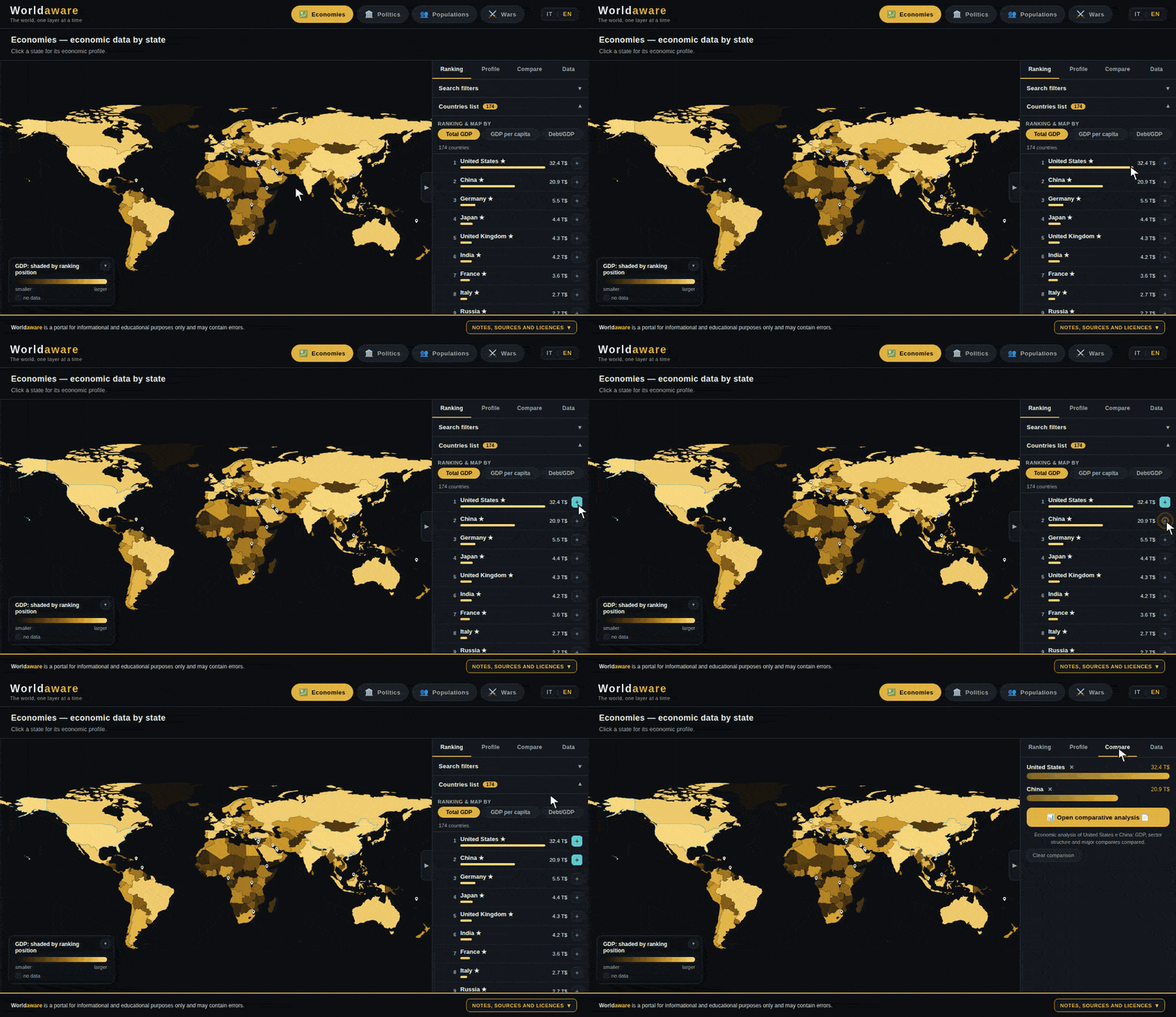
3 Adding two countries to the comparison with the + button and opening the Compare tab

Compare two countries in two clicks

In the ranking, hit the “+” next to two countries to add them to the comparison, then open the Compare tab: you'll see the values side by side with proportional bars and a link to the full comparative analysis.

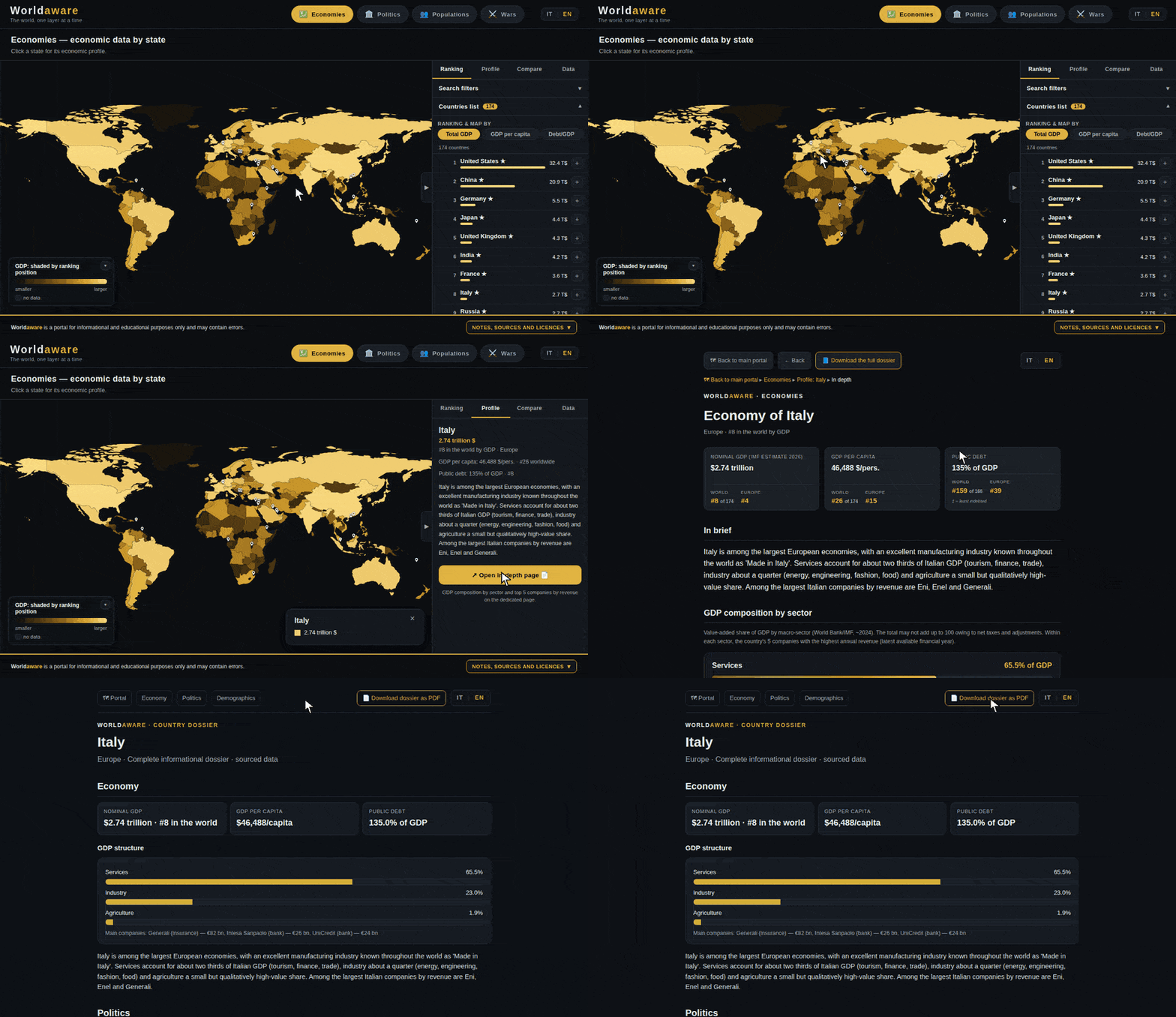
4 From the card you open the in-depth page and the dossier, downloadable as PDF

Download the dossier as PDF

From the card, open the country's in-depth page and from there the full dossier: a printable page with data and citations, downloadable as a PDF with a single click on the dedicated button.

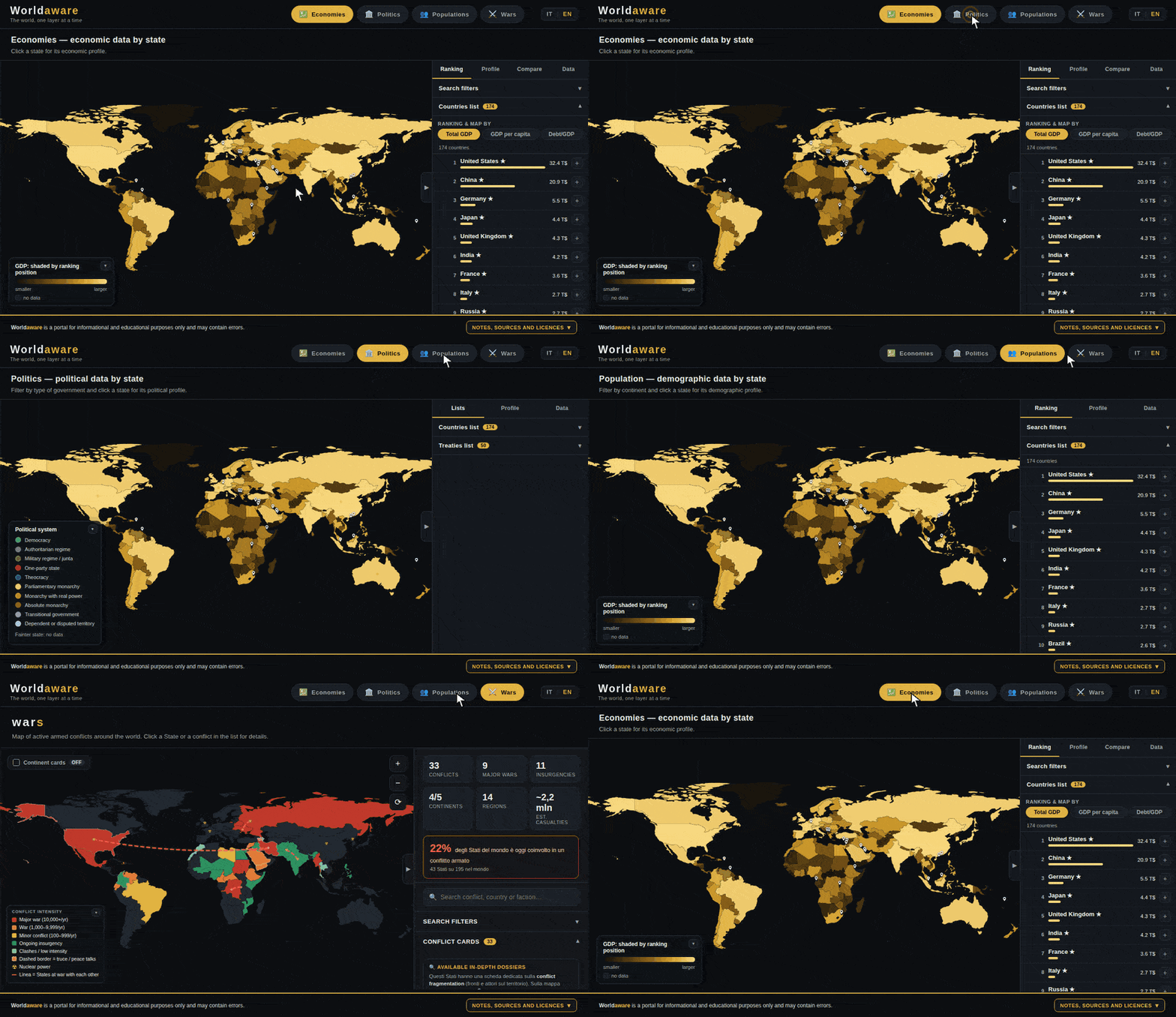
5 Switching between the Economies, Politics, Population and Wars sub-portals from the top bar

Navigate between the sub-portals

The top bar switches between the four world layers: Economies, Politics, Population and Wars. The map recolours and the panel shows the data for the chosen theme, keeping the same look and feel.

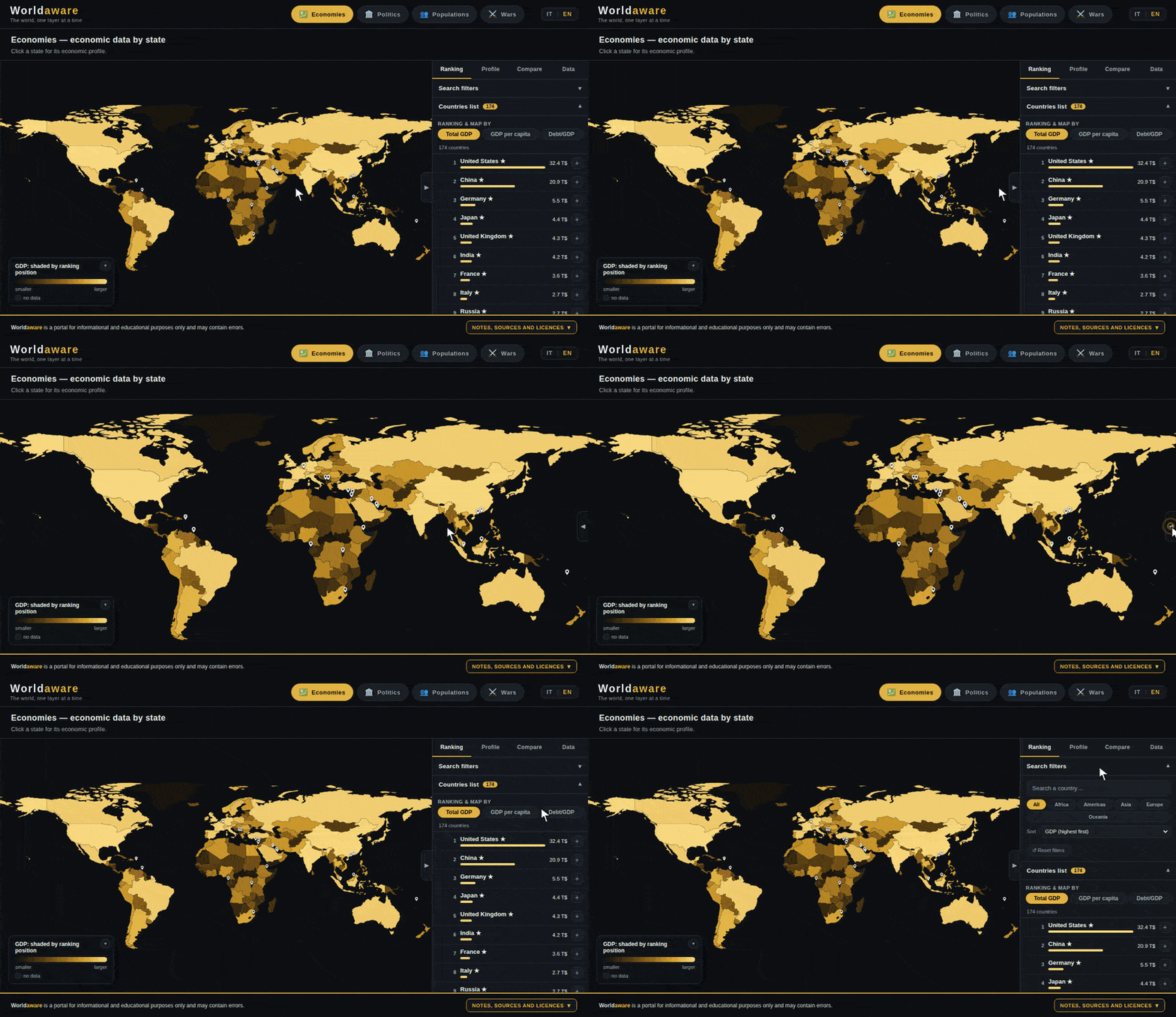
6 Opening and closing the side panel with the tab and collapsing sections

Open and close the panel and sections

The ▶ / ◀ tab hides or shows the side panel to give the map more room. Sections such as Filters and the legends expand and collapse to keep the view tidy.

Tip: each GIF is silent and loops automatically — no need to press play.